Work items and subtasks
A work item keeps the task, discussion, files, and time together. Use subtasks for the smaller steps needed to finish it.
Create a work item
Owners and admins can open Work → New Work Item.
- Enter a clear Title, such as “Update the homepage contact button.”
- Choose a Client. Select a Project if this belongs to one; otherwise use Standalone ticket.
- Choose the Type and starting Status.
- Optionally assign a person, add a due date, priority, estimate in minutes, and description.
- Choose Create Work Item.
A milestone is optional and requires a project. It must belong to that project.
Change status without opening Edit
- Open the work item from the Work list.
- Click its current status pill beneath the title, such as Backlog or In Progress.
- Select the new status from the menu.
- Wait for Saved. The pill updates and the menu closes.

Demo workspace. Select the status pill on the work item's detail page. Open the image for a larger view.
The status pills in the Work list are informational. Open the item to change its status. If saving fails, check the displayed error before trying again. Archived items cannot change status.
Assign responsibility
Open the Assignee menu on the work item. Choose Assign to me, a teammate, or Unassigned. Subtasks also have their own assignee controls.
Open work assigned to you appears in Dashboard → My Work. When a parent and its subtask are both assigned to you, the Dashboard shows the parent rather than repeating both. Subtasks use the parent's due date for Dashboard ordering; they do not have separate due dates.
Add subtasks
- In Subtasks, enter a short action in Add Subtask.
- For extra context, open Add Description. The editor expands within the form.
- Select an assignee if needed, then choose Add Subtask to save the new step.
- Use the subtask's completion control when that step is finished. Expand the completed section to review finished steps.
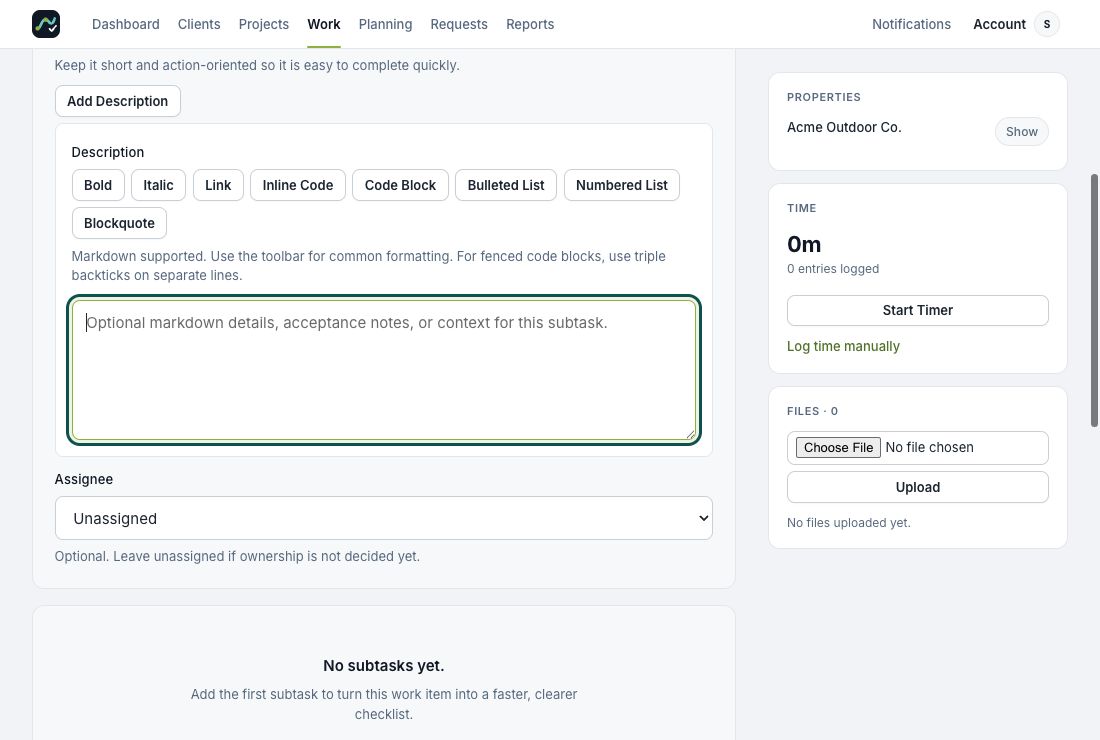
Opening Add Description does not save a subtask. Finish the form and choose Add Subtask.
A completed subtask and the parent work item's status are separate controls. Check the parent status when the overall work is finished.
Comments, files, and time
Write an update in Comment, then choose Add Comment. The formatting toolbar supports bold text, links, lists, and code. Where the editor says image pasting is supported, wait for the image upload to finish before saving.
Owners and admins can mark a comment Internal note to restrict it to workspace owners and admins. Public request forms do not expose the internal comment thread.
Use Files → Choose File → Upload for attachments. See upload limits. Use the Time panel for a timer or manual time entry; see Time tracking and reports.
Find existing work
Use Search for a title or reference code and Status to narrow the list. Open More filters for client, project, type, kind, or archived state, then choose Apply. Use Reset or Clear Filters to return to the default list.
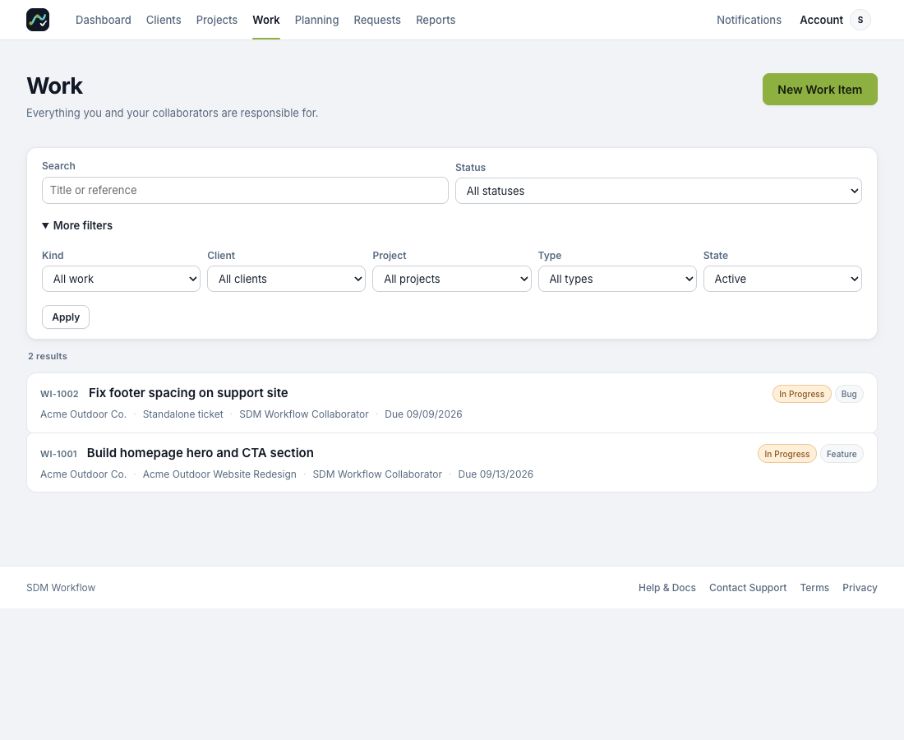
Advanced filters stay open when one is active. Changing a filter takes effect after you choose Apply.
Need more help? Contact Support with what you were trying to do and the message you saw. We’ll reply by email.