Share a project revision form
Use a project's revision form when a client has several changes to existing work. Each submitted change becomes a subtask, keeping the client's requests separate and trackable.
Before you start: an owner or admin needs an active project linked to a client. The workspace must have editing access for clients to submit new work.
Copy and share the right link
- Open Projects and select the project.
- Choose Share Revision Form to jump to Client Revision Form.
- Choose Preview Form to check the project and client context.
- Return to the project and choose Copy Link.
- Paste the complete link into your message to the client.
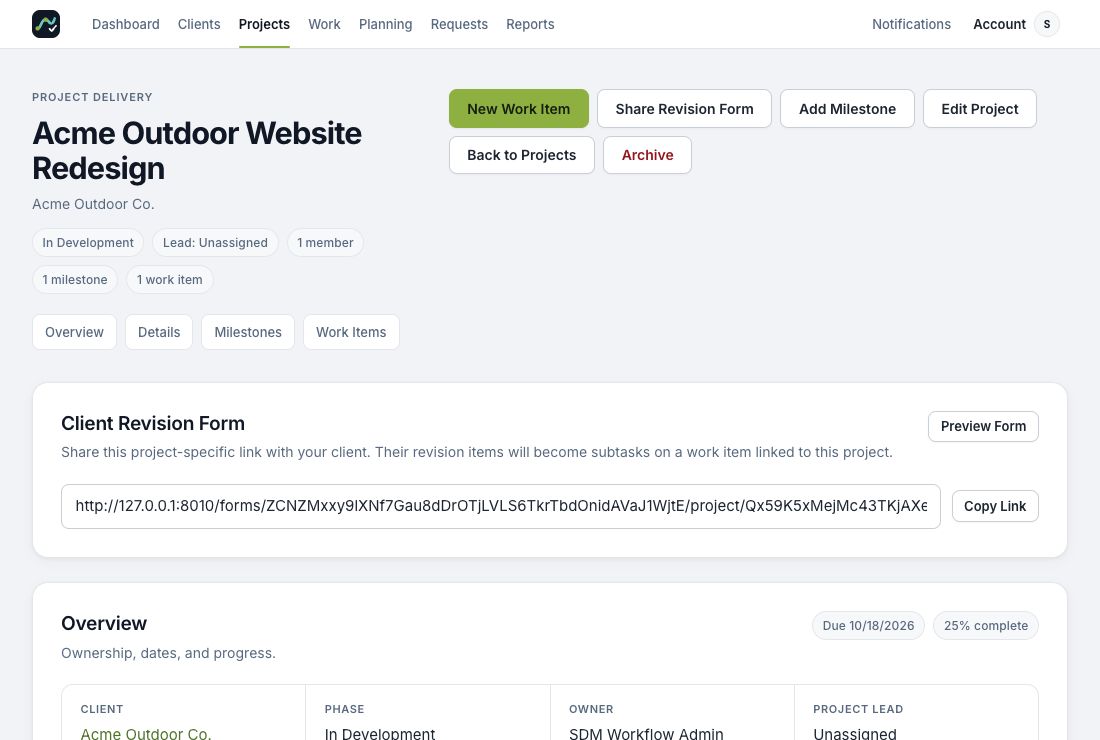
Demo project. Copy your own project's link; the example URL in this screenshot is not a usable client link.
The client does not need an SDM Workflow account or a team seat. Share the copied form link, not the address of your internal project page. Do not shorten or remove the part of the link after ?.
What your client does
- Checks the prefilled company and project details, and enters their name and email.
- Optionally selects a requested priority and due date.
- Chooses the area for the first change, such as Header or Navigation, or uses Type your own area.
- Describes what should change and optionally adds a reference URL or supporting file.
- Uses Add another revision for each separate change.
- Chooses Submit Revision Request and waits for the confirmation page.
A supporting file for each revision may be a JPG, PNG, GIF, WEBP, or PDF up to 1 MB. A useful request says both where the change belongs and what the result should be: “On the Contact page, change the button text to Request a quote.”
Review the submitted work
Open Requests, select the submission, and use Open followed by the work reference to view the resulting work item.
The submission creates one project-linked work item and ordered subtasks for its valid revision items. Supporting files stay with the corresponding subtask. Review the requests, assign responsibility, and set the work's status as your team starts processing it.
The original submission remains under Requests. If something is missing, follow Revision subtasks are missing before creating duplicate work manually.
For broken links, see A client cannot open a revision link.
Need more help? Contact Support with what you were trying to do and the message you saw. We’ll reply by email.