Why a record is read-only or missing
A missing item can be caused by the selected workspace, list filters, your permissions, or archiving. Check these before recreating it.
Check the workspace and filters
- Open Account or Menu and confirm you are in the intended workspace.
- Clear the list's search and filters.
- For clients or projects, set State to Archived or All, then choose Apply.
- In Work, first open More filters to find State, then choose Apply.
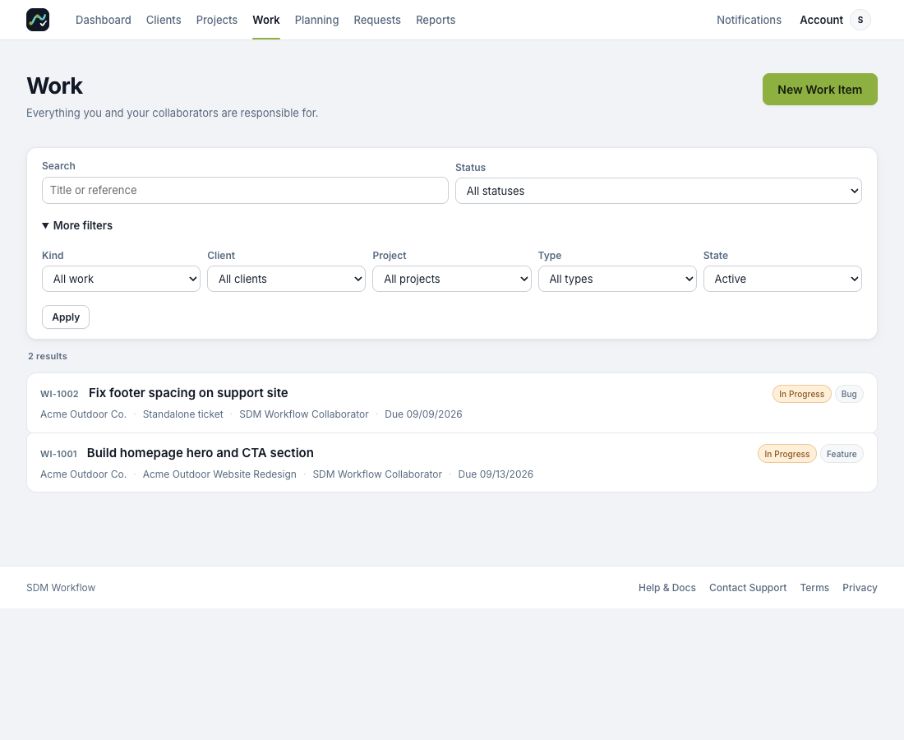
State is under More filters on the Work list.
Check your access
Collaborators do not automatically see every record in a workspace. Ask an owner or admin to check the work or project assignment. A link from another workspace does not grant access to its records.
Restore an archived record
Owners and admins can open an archived record and choose Restore when appropriate. Archive hides a record from the default active list and restricts changes; it is not the same as deleting a personal account.
Archived projects stop accepting new public revisions. Check the project and client before resending a revision link.
When many records are read-only
If editing is unavailable across the workspace, check the trial, subscription, or suspension state rather than restoring individual records. See Trial ended or workspace is read-only.
If a record still cannot be found, contact an owner or support with its title or reference and the page where you expected to see it.
Need more help? Contact Support with what you were trying to do and the message you saw. We’ll reply by email.